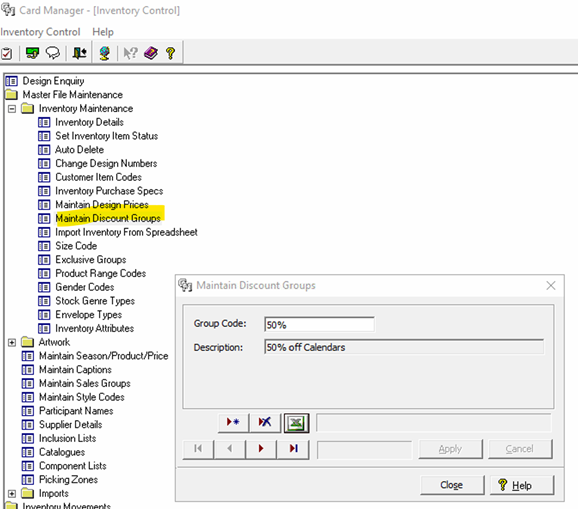
Create “Design Discount Groups” for each discount (eg. 10%, 20%)
- Open “Maintain Discount Groups”
InventoryControl > MasterFileMaint. > Inventory Maint. > Maintain Discount Groups - Click the “New” button and enter a suitable group code and description
eg. DESDISC10, 10% Design Discount - Repeat step 2. For each discount required.
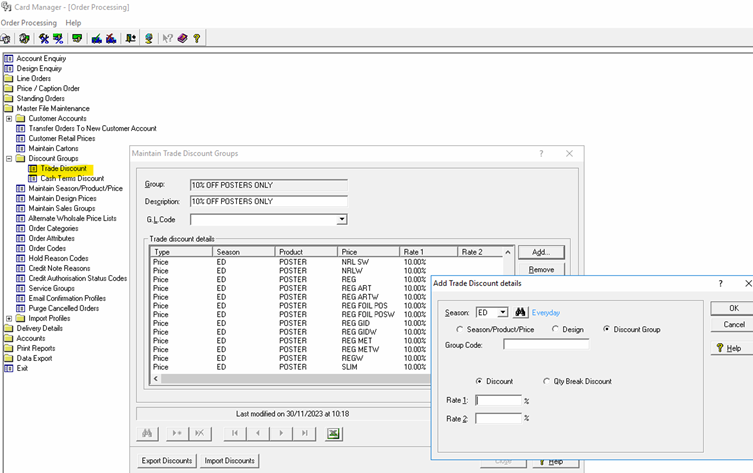
Next, add the “Design Discount Group” to each Trade Discount
- Open “Trade Discount”
OrderProcessing > MasterFileMaint. > Discount Groups > Trade Discount - Click in the grey area to begin editing the Trade Discount.
- The click the “Add” button.
- Select “ED” for the Season and the “Discount Group” radio button, and enter the Design Discount Group Code you created earlier (eg. DESDISC10) in “Group Code” and the discount percentage in “Rate 1”. Click “OK” button
- Repeat Steps 3 and 4, for each Design Discount Group
- Once complete, select the next Trade Discount group (arrow button) and repeat Steps 2-5
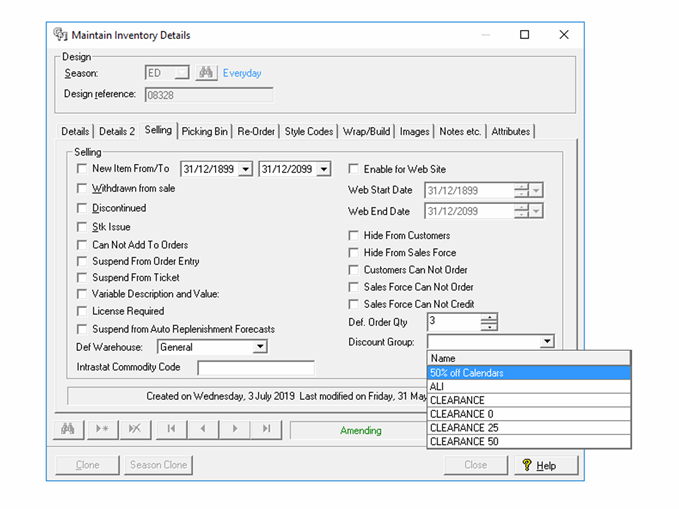
Lastly add designs to the DesignDiscountGroup
- Open Maintain Inventory Details
InventoryControl > MasterFileMaint. > Inventory Maint. > Inventory Details (Selling tab) - Click the Discount Group drop down and select the appropriate design discount group.
- Bulk changes can be made via spreadsheet import using the field “DISCGROUP” and entering the Design Discount Group Code (DESDISC10)