
Setup Standing Order
The first step is to create a Standing Order (SO) for the Pack.
(Order Processing > Standing Orders > Line Order > Maintain Standing Order)
Create a new SO and enter a Reference and Description.
Next click the Design Details tab and enter each of the designs to be included in the Pack.
eg. NB50006, NB50007 NB50348.
Lastly, for tracking/audit/reporting purposes, we recommend adding a marker or "fake" design to the Pack.
(eg. "*MarvelPack2020")
Associate Design with SO
Next you will need to create a design to associate with the Pack.
(Inventory Control > Master File Maintenance > Inventory Maintenance > Inventory Details)
Create a new Design and enter the appropriate details.
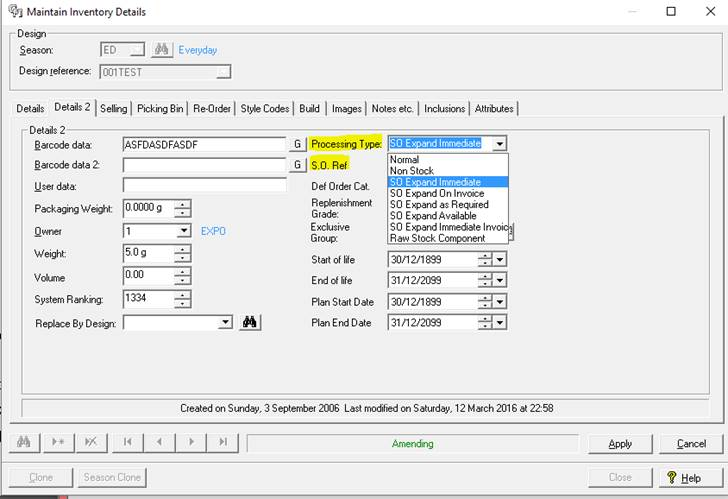
Next open the “Details 2” tab.
- Set the ‘SO Ref’ field to the use the SO you created earlier.
- Set the Processing type to “SO Expand Immediate Invoice”
Setup Licencing (if applicable)
Select the appropriate licence reference from Maintain Licence.
(Sales Reporting > Licencing > Licence Manager > Maintain Licence)
Lastly add the newly created Pack Design to the Product Set: Designs.
It is important to note that licence royalties will be calculated against the Pack Design and not the individual items within the pack.